
An offer from the address “name.surname1987@gmail.com” looks like a part-time job until the customer reads it. From regular Gmail, you can send as biuro@yourcompany.example - three steps in the settings, without the paid Google Workspace.

Before you start
By default, the company address has its own mailbox. There are two usual paths:
Zimbra (free). The mailbox is included in the package with the domain at OVH. You read it in the browser, and on your phone you add it as an account in the Gmail application - ”OVH Mail on your phone without Gmail”.
Google Workspace (paid). The company address works normally in Gmail, without additional settings; you pay monthly for the box - ”Google Workspace”.
If you stick with private Gmail
This is a workaround: it works as long as everything's right, but it's easy to mess up - changing your inbox password or old setting and Gmail stops sending without a word. If you still want to stay that way, the steps are below. You need your own domain and a mailbox there, e.g. biuro@yourcompany.example - paid Workspace is not required for this.
Step 1 - Set your own password
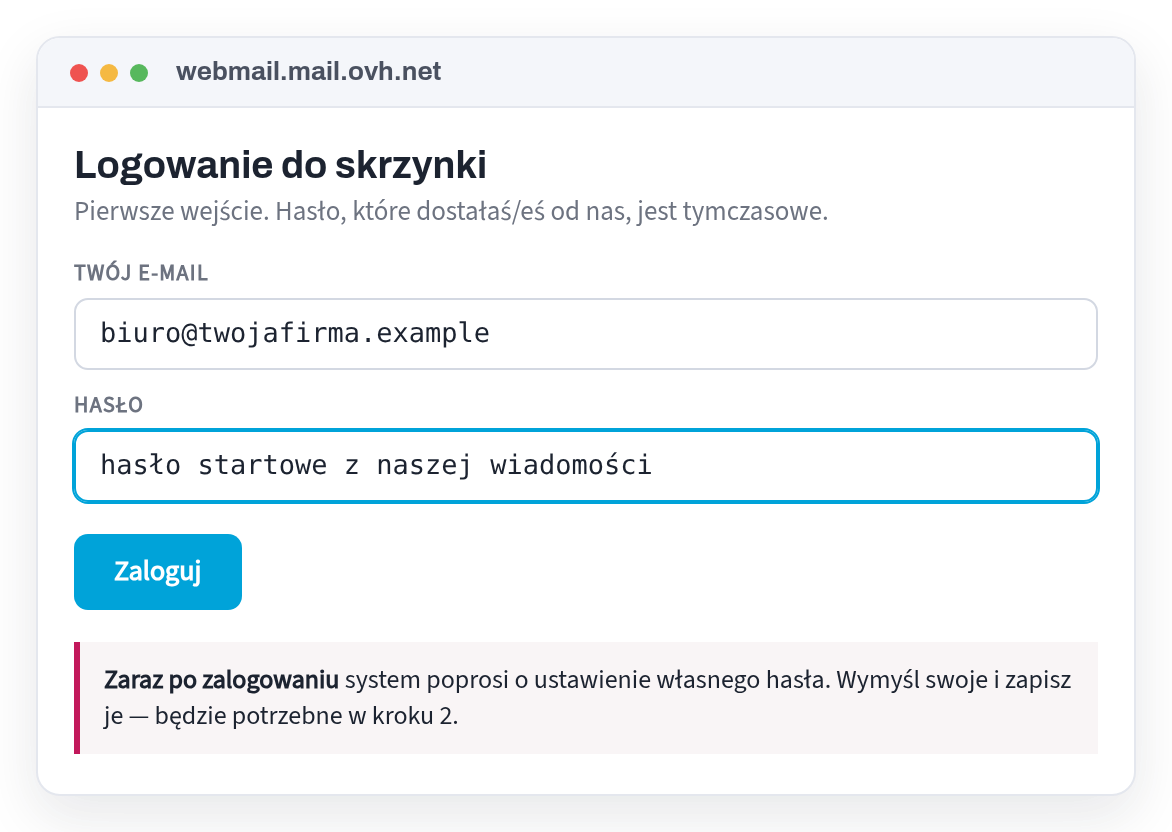
Log in to the company mailbox in your browser with the starting password and set yours. Only then will you enter the new one in Gmail.
Step 2 - Add your Gmail address
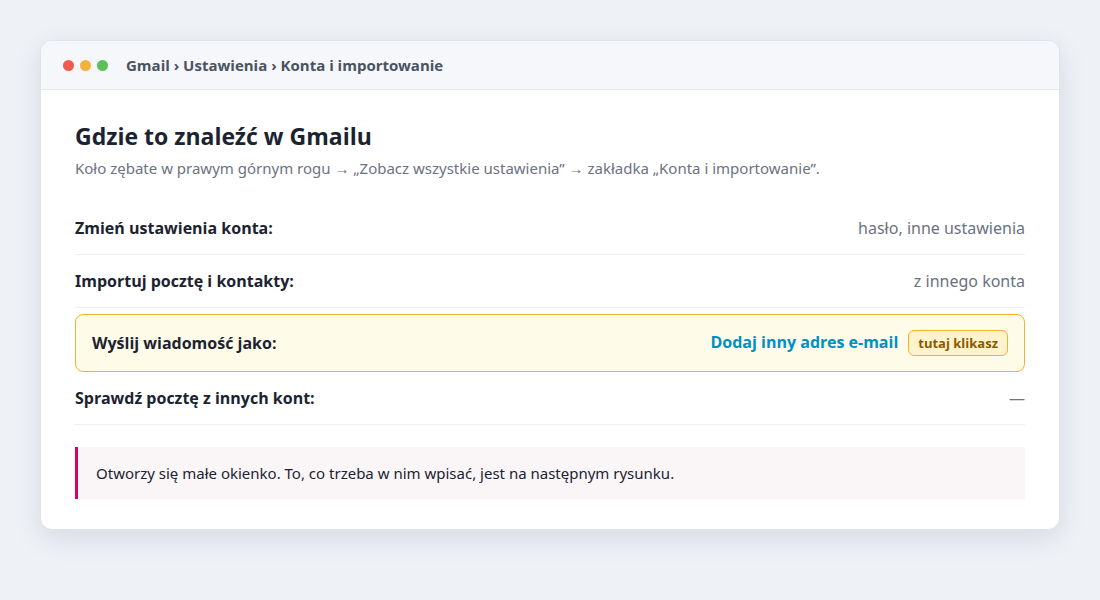
Gear → “See all settings” → “Accounts & import” → “Send message as” → “Add another email address.” Enter your company name and business address.
Step 3 - Five server fields
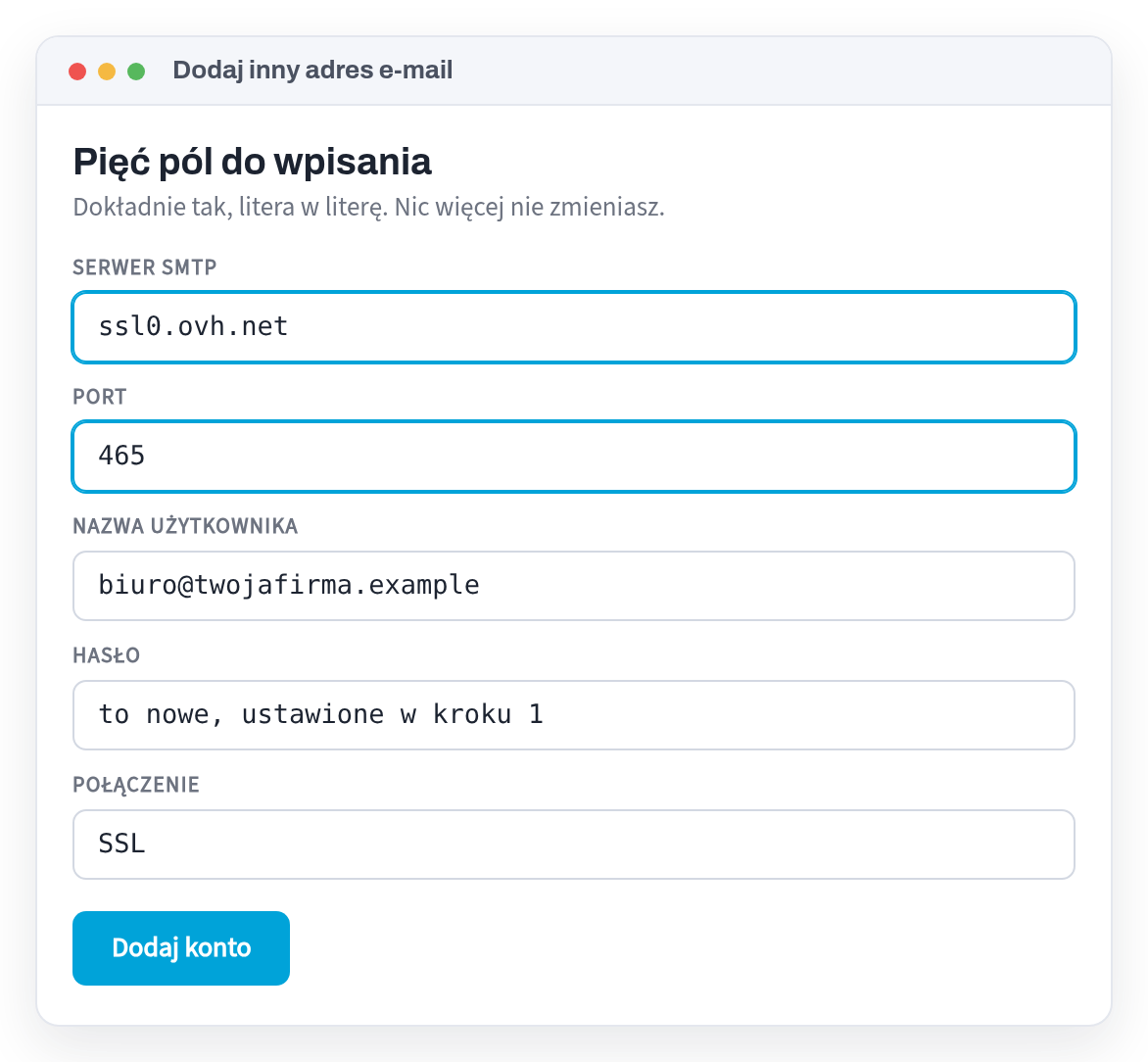
Gmail will send a confirmation code to your business address. You'll find it wherever you read your company email - in your browser or on your phone. Enter the code and that's it: next to a new message, you select the sender.
Check if it works
- Send a message to yourselfWith a company address as the sender, to a private one. The “from” field should contain the company address, without the note “on behalf of”.
- Reply to herThe reply is to be returned to the company address. If not, select “Reply from the address to which the message was sent” in the settings.
Are you changing your mailbox password? Correct them in Gmail too - otherwise it will stop sending without a word.
We create websites for Polish companies in the Netherlands
If, after reading this text, you see that your website is missing something, we will check it for free and you will receive a list of specifics with proof for each point. You don't have to order anything.
And if you don't have a website yet: we will create it within 24 hours once we have all the materials. You only pay €149 when you decide it's OK; The price includes the first year of your own domain, hosting and email, and after payment, the website is yours.
Sources
Each fact in this text comes from one of the sites below. Laws change - if you are reading this long after the review date, please check the source.
Read also
- OVH Mail on your phone without Gmail - iPhone and AndroidHow to open your OVH company mailbox (e.g. biuro@yourcompany.example) on a phone without Gmail: shortcut in the browser, built-in Mail on iPhone or free Android application - with ready-made settings.
- Business email with OVH on Android - in the Gmail appHow to add a company mailbox from OVH (e.g. biuro@yourcompany.example) in the Gmail application on your phone so that sending goes straight through the mailbox server - with ready-made IMAP and SMTP settings.
- Google Workspace: paid business email - setting up in 6 stepsGoogle Workspace is paid business email in Gmail on your domain. How to set it up in 6 steps and what to send to the company that runs your domain - without any passwords.
- Werkspot: how much does one job really cost?You pay from €3 to €96 for contacting a customer - even if you don't receive the order. How to calculate the cost of one Werkspot order and how to make the next one come free of charge.
- Privacy policy on the website of a company in the Netherlands - what must be thereEven a regular contact form collects personal data, and Dutch law (AVG) then requires you to tell us what happens to it. What needs to be on the Privacy page and when you really need cookie consent.
- Website in Polish or Dutch - who is your company for?Polish clients, Dutch clients, or both? This determines what language the website should be in. We show you how to decide and what the bilingual version offers.
- Subscription website - how much will you really payA website “for €0” and then a permanent subscription fee for its maintenance. We show you how much it really costs for one, three and five years and what three questions to ask before signing.
- What must be on the website of a company in the NetherlandsKvK, btw-id, address, telephone and privacy policy - what Dutch law requires on the company website and where to enter it. With legal basis for each point.
- Google Business Listing: How to Get Found Before You Have a PageA free business card on Google is the fastest way for a customer in the Netherlands to find you. What to enter, how to verify the company and what to do with opinions.
- Ile kosztuje strona internetowa w HolandiiWhat really affects the price of the website, what can be saved without loss, what is not worth paying for and how much it costs us. With specific amounts.
- Why is no one calling from your side?Eight reasons why the website exists and the phone is silent. Everyone can check it themselves in a few minutes, on their own phone.
- Website or online store - what you really needA store costs several times more than a website and requires constant maintenance. When is it really needed and when is a simple website enough?
- How to get clients for renovations in the Netherlands without paying for advertisingFour places where a Polish renovation team in the Netherlands can show up for zero euros - and one where they usually waste time.
- I have a business on Facebook - do I still need a page?The Facebook page is free and fast. However, it has three limitations that no one talks about when setting up.
- How to find out whose domain it is - and get it back from the contractorHow to check who the .nl domain is registered to, and then: transfer code, five days to issue it, sample letter from SIDN - when the company that created your website stopped receiving.